
You wrote a good email. You hit send. And it went straight to spam.
It happens to almost everyone who sends email to a list. The good news is that the reason is rarely a mystery. Inboxes like Gmail, Yahoo and Outlook look at a handful of signals, and most problems come down to six of them.
Here's what they are, how to tell which one is hurting you and how to fix it.
How Inboxes Decide What Is Spam
Think of every mailbox provider as a careful doorman.
Before it lets your email in, it asks a few questions. Is this sender who they say they are? Have they sent junk before? Do people who get their emails actually want them? Does this email look like spam?
Each answer adds to or takes away from your sender reputation. Good reputation, you reach the inbox. Bad reputation, you land in spam or don't get delivered at all.
Since 2024, the big providers have also become much stricter. Gmail and Yahoo require bulk senders to set up email authentication, offer one click unsubscribe and keep spam complaints low. Outlook added similar rules in 2025. Senders who ignored those rules saw their spam rates jump.
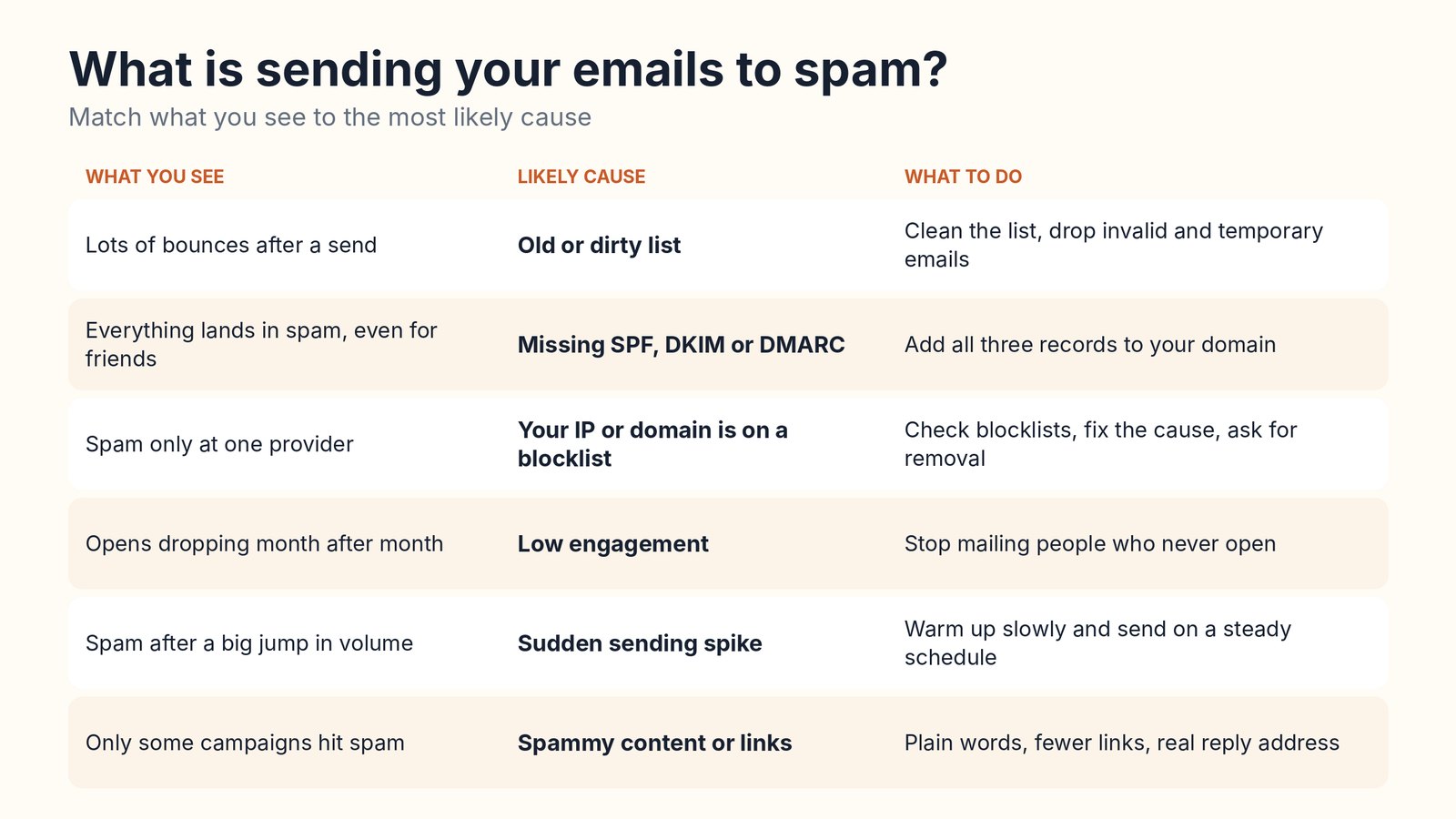
Use this chart to find your most likely problem first.
1. Your List Has Bad Addresses
This is the most common cause, and the easiest to fix.
Lists go bad over time. People change jobs and their work address dies. Someone types gmial.com instead of gmail.com. Others sign up with a throwaway inbox to grab a freebie and never look at it again.
When you send to those addresses, the emails bounce. And a sender who keeps mailing addresses that don't exist looks careless, or worse, like a spammer who bought a list.
How to tell. Look at your bounce rate after each send. If it's above 2 percent, your list needs attention.
How to fix it. Clean your list before every big campaign. Remove invalid addresses, and catch disposable inboxes at the point of sign up.
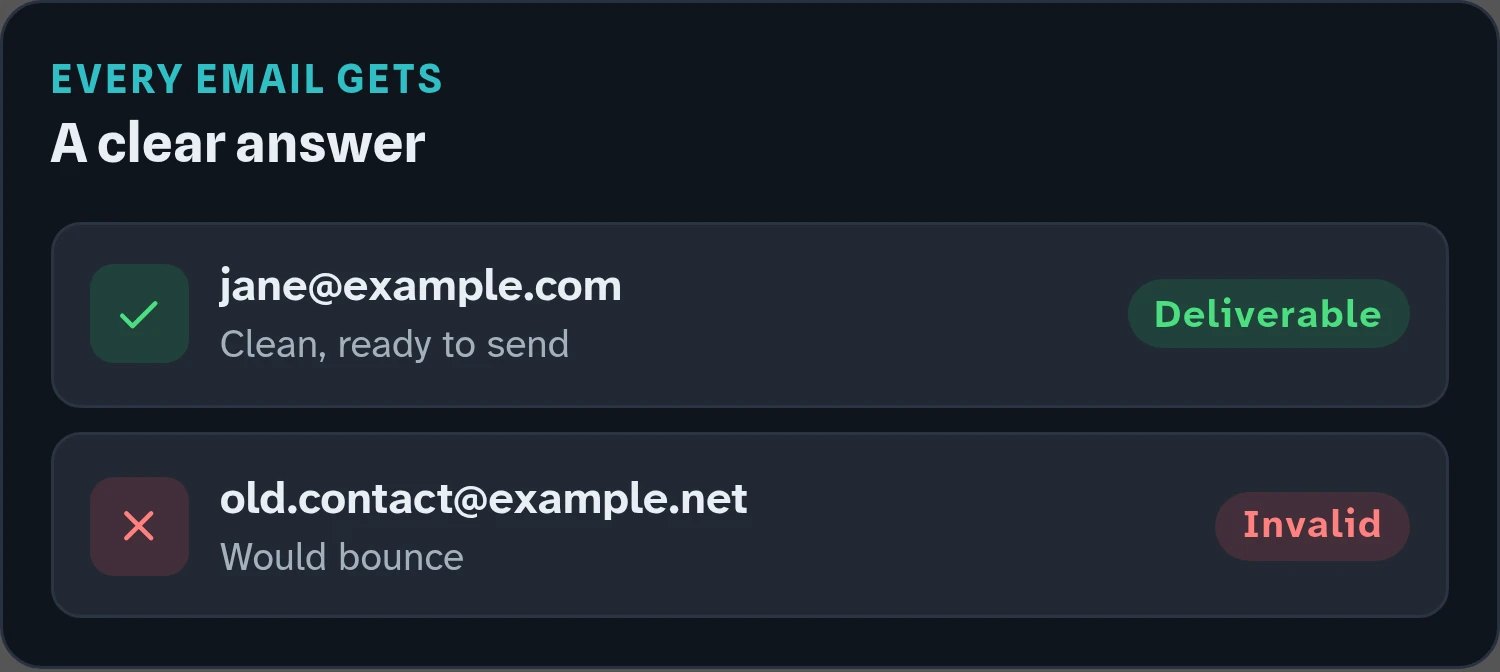
Clean-Emails checks every address and gives each one a clear answer, deliverable or invalid, with the reason behind it. You download only the good ones.
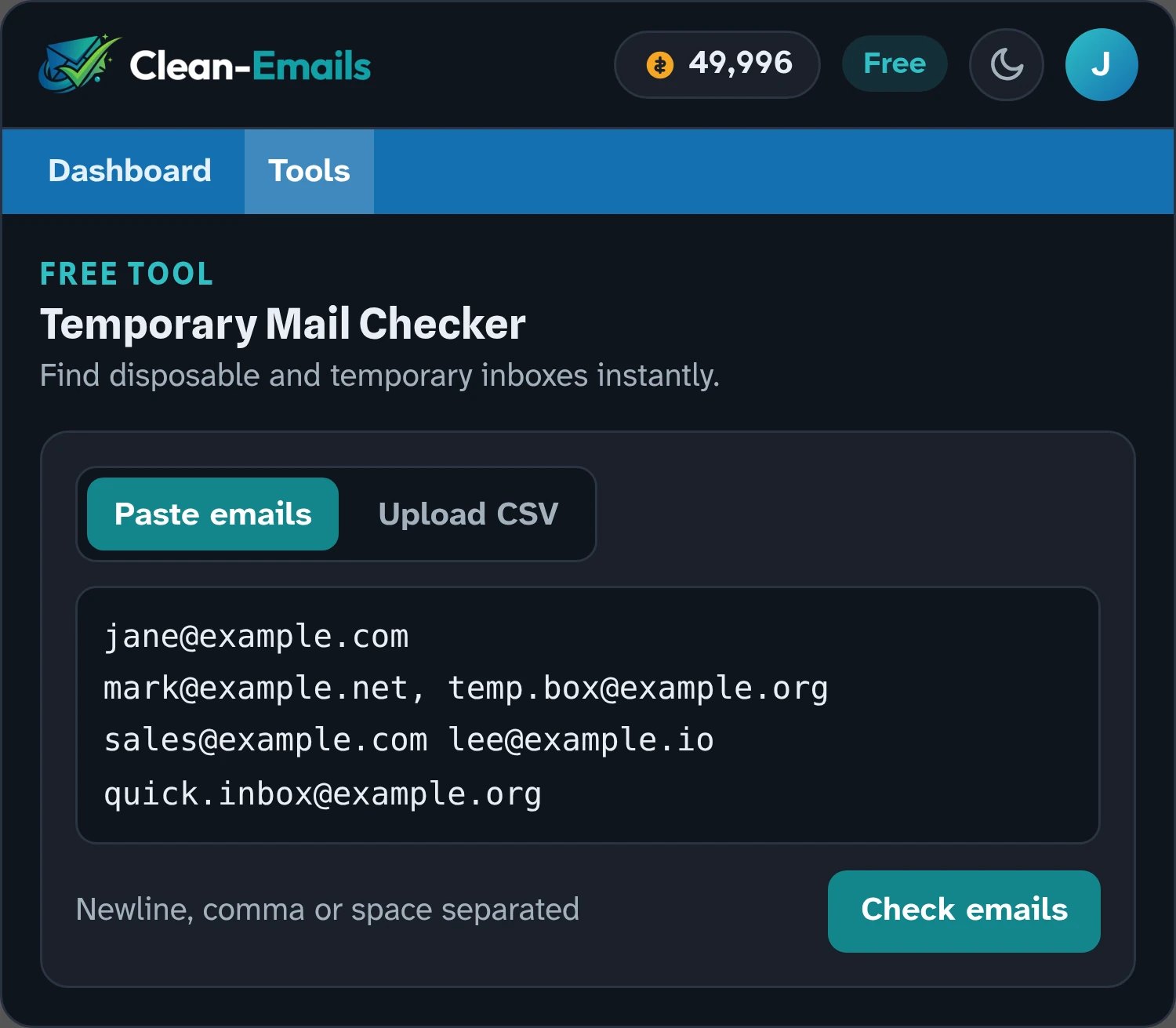
The free Temporary Mail Checker spots throwaway inboxes from forms, giveaways and webinar sign ups before they ever reach your list.
2. Your IP or Domain Is on a Blocklist
Blocklists are shared lists of IP addresses and domains that have been caught sending spam. Mailbox providers check them before accepting email.
You can land on one without meaning to. Maybe you sent to an old list with spam traps in it. Maybe your website was hacked and sent junk. Maybe you share an IP address with another sender who misbehaved.
How to tell. Spam problems that hit one provider hard but not others are a strong hint. So is a sudden drop in delivery with no change on your side.
How to fix it. Check your sending IP and your domain. If you're listed, fix the cause first. Then follow that blocklist's removal steps. Most will delist you once the problem has stopped.
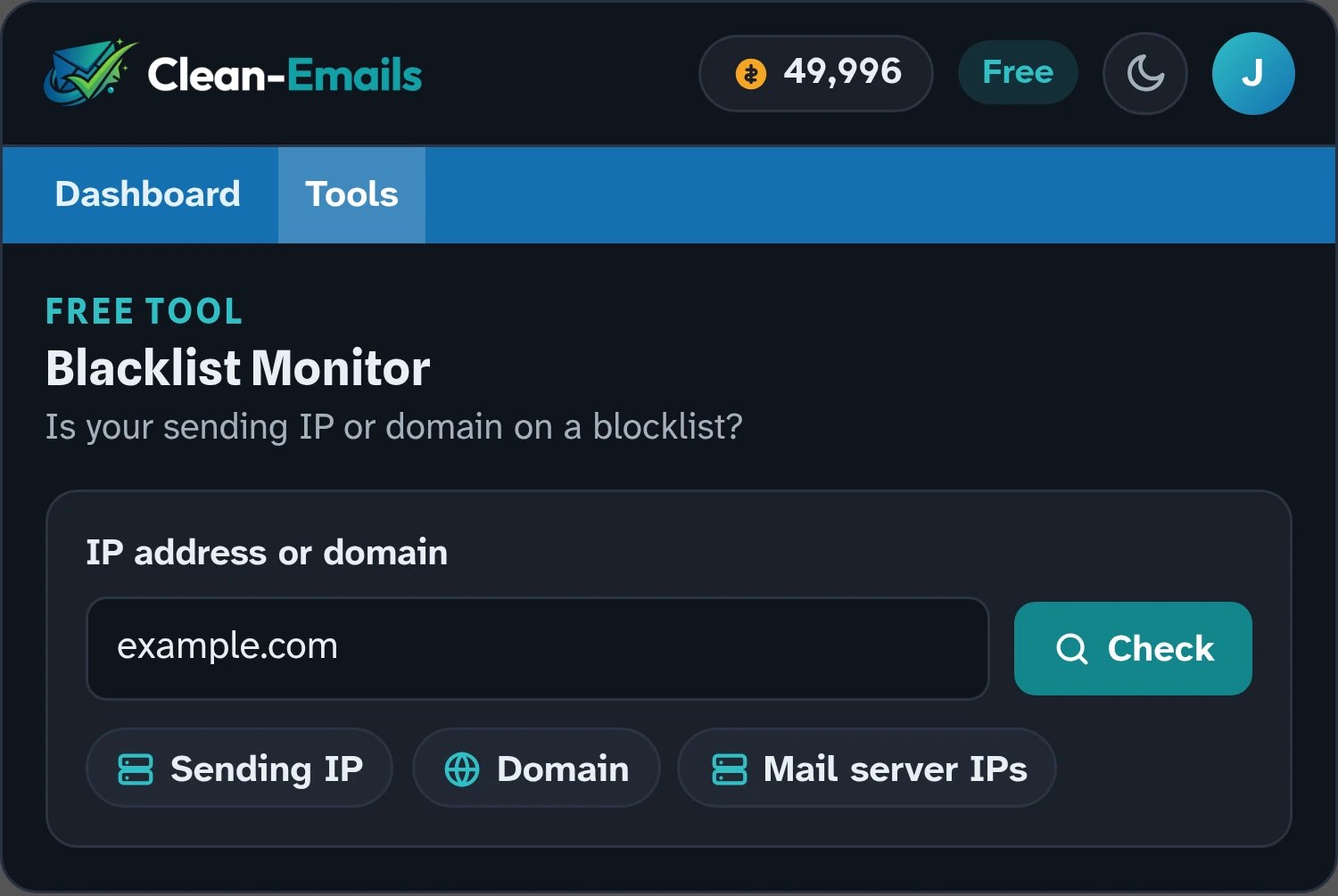
The free Blacklist Monitor in Clean-Emails checks an IP or a domain. When you check a domain, it also checks the IPs of its mail servers, which catches problems you might not know about.
3. SPF, DKIM or DMARC Is Missing
These three records live in your domain's DNS settings. Together, they prove that an email really came from you.
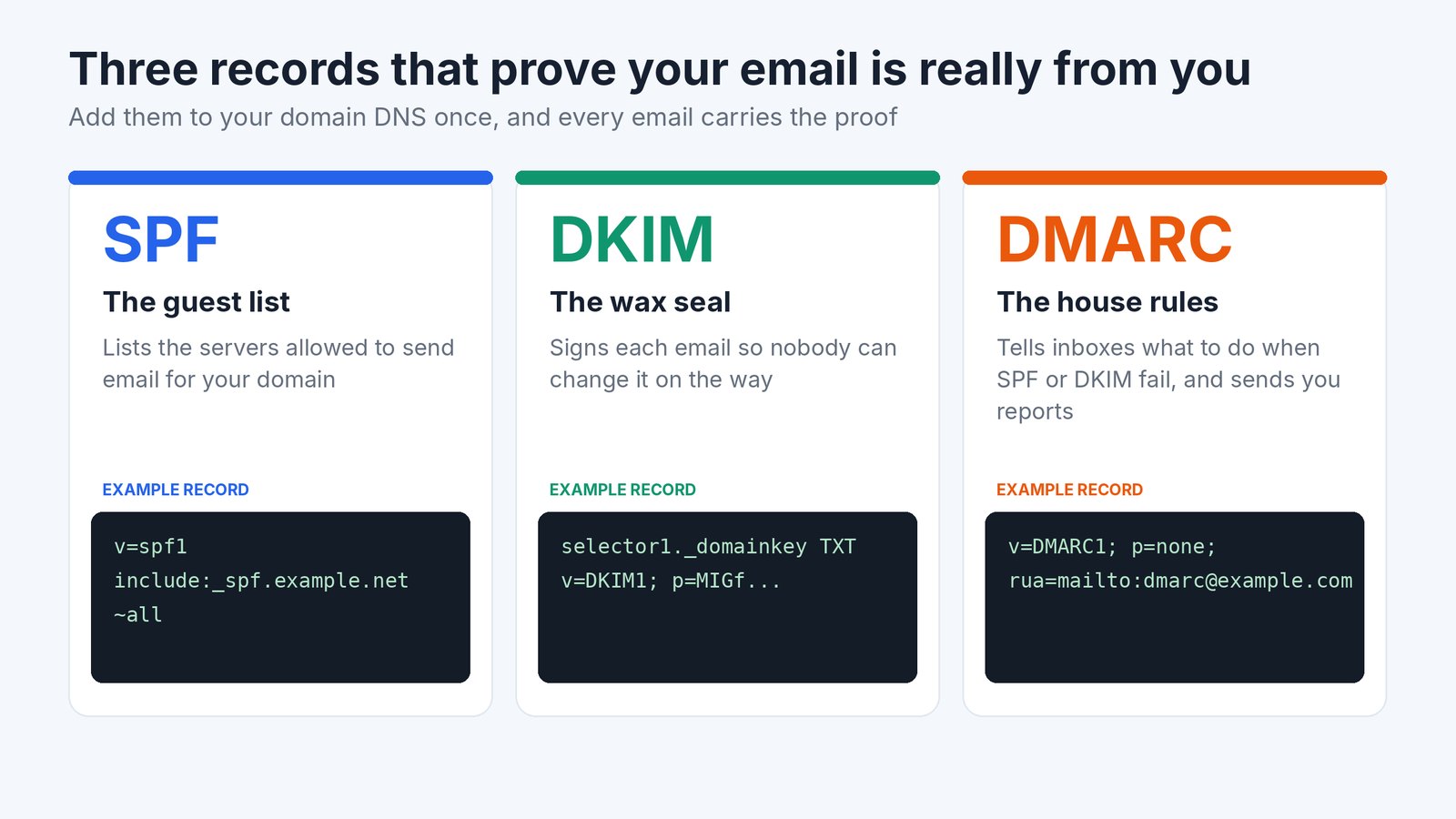
SPF is a list of the servers allowed to send email for your domain. If you use an email marketing tool, your SPF record needs to include it.
DKIM adds a digital signature to every email. If anyone changes the email on the way, the signature breaks.
DMARC tells inboxes what to do when SPF or DKIM fails, and sends you reports so you can see who is sending as you. Start with p=none to watch, then move to quarantine or reject once everything passes.
Without these, big providers have no way to trust you. Gmail and Yahoo now require all three from anyone sending 5,000 or more emails a day to their users, and authentication helps smaller senders too.
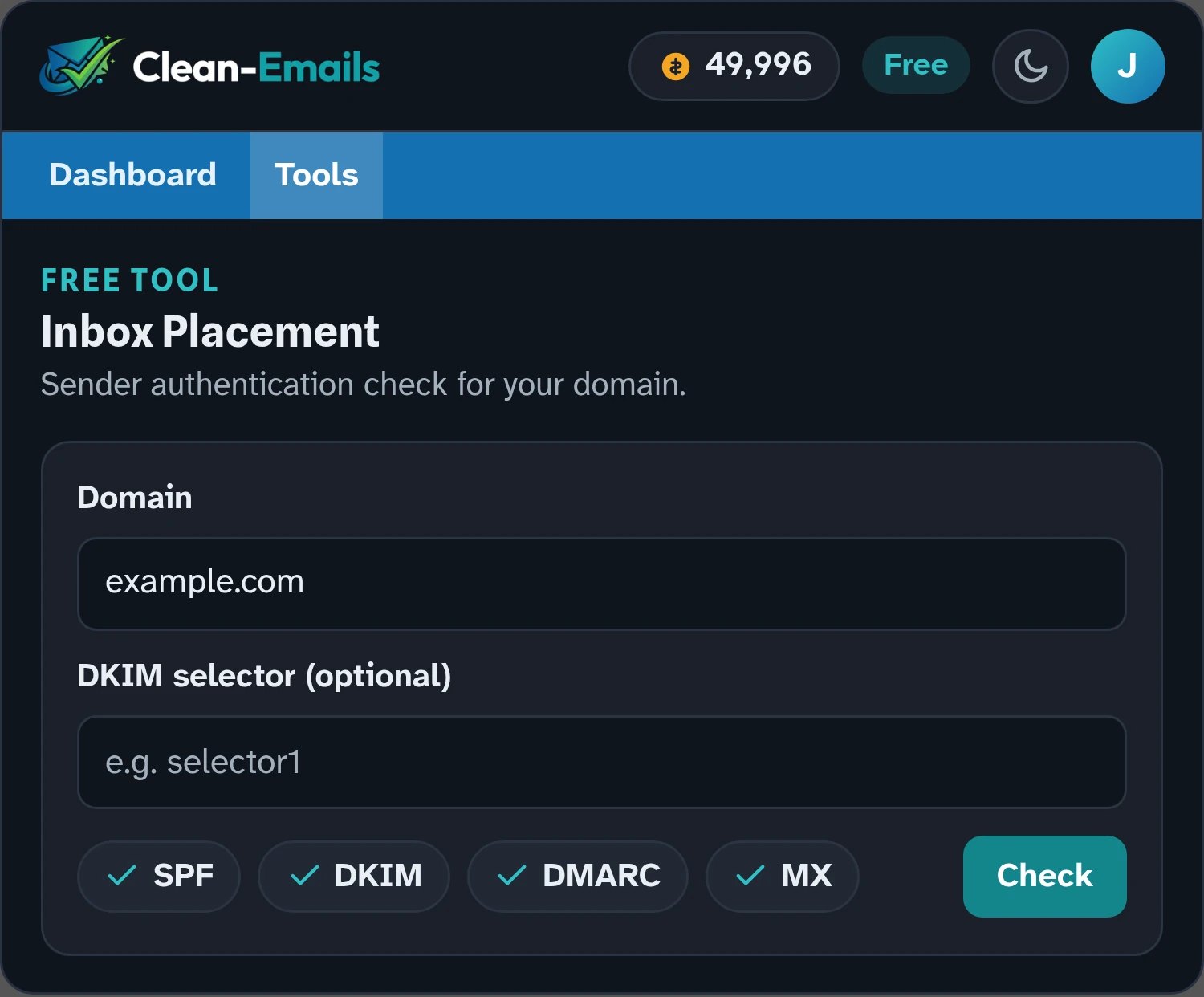
How to tell. Run a sender authentication check on your domain. The free Inbox Placement tool in Clean-Emails checks SPF, DKIM, DMARC and MX in one go. It only reads your public DNS records, so nothing is sent.
How to fix it. Your email service will have setup steps for SPF and DKIM. Copy the records they give you into your DNS. Then add a simple DMARC record. It usually takes less than half an hour.
4. Your Email Looks Like Spam
Content matters less than it used to, but it still matters.
Spam filters notice the same patterns over and over. Watch out for these.
- Subject lines in ALL CAPS or full of exclamation marks
- Pushy money words like "free money", "act now" or "100% guaranteed"
- One big image with very little text
- Lots of links, or links through shorteners like bit.ly
- A no-reply sender address
- No unsubscribe link, or one that's hard to find
- A subject line that doesn't match the email
How to fix it. Write like a person writing to a person. Use a real name and a reply address you check. Keep a healthy mix of text and images. Link to your own domain where you can. And make unsubscribing a single click.
That last one isn't optional anymore. Gmail and Yahoo now expect one click unsubscribe on marketing emails from bulk senders.
5. People Don't Open or Engage
Inboxes watch what people do with your emails. Opens, replies, clicks, moving you out of spam and adding you to contacts all help.
Ignoring you hurts. Deleting without reading hurts. Marking as spam hurts a lot.
Gmail's guidance is to keep your spam complaint rate below 0.1 percent and never let it reach 0.3 percent. That's one complaint per thousand emails.
How to tell. Open and click rates that drop month after month, plus a creeping complaint rate in Google Postmaster Tools.
How to fix it.
- Only email people who asked to hear from you. Never buy lists.
- Send a welcome email right after sign up, while people still remember you.
- Stop mailing people who haven't opened in six months. Try one re-engagement email first, then let them go.
- Ask readers to reply. Replies are one of the strongest good signals there is.
- Make every email worth opening. If you have nothing useful to say, skip the send.
6. Your Sending Habits Look Odd
Inboxes like senders who are steady and predictable.
A new domain that suddenly sends 20,000 emails looks suspicious. So does a list that goes quiet for a year and then gets a huge blast.
How to fix it. Warm up new domains and IPs slowly. Start with your most engaged contacts and raise your daily volume step by step.
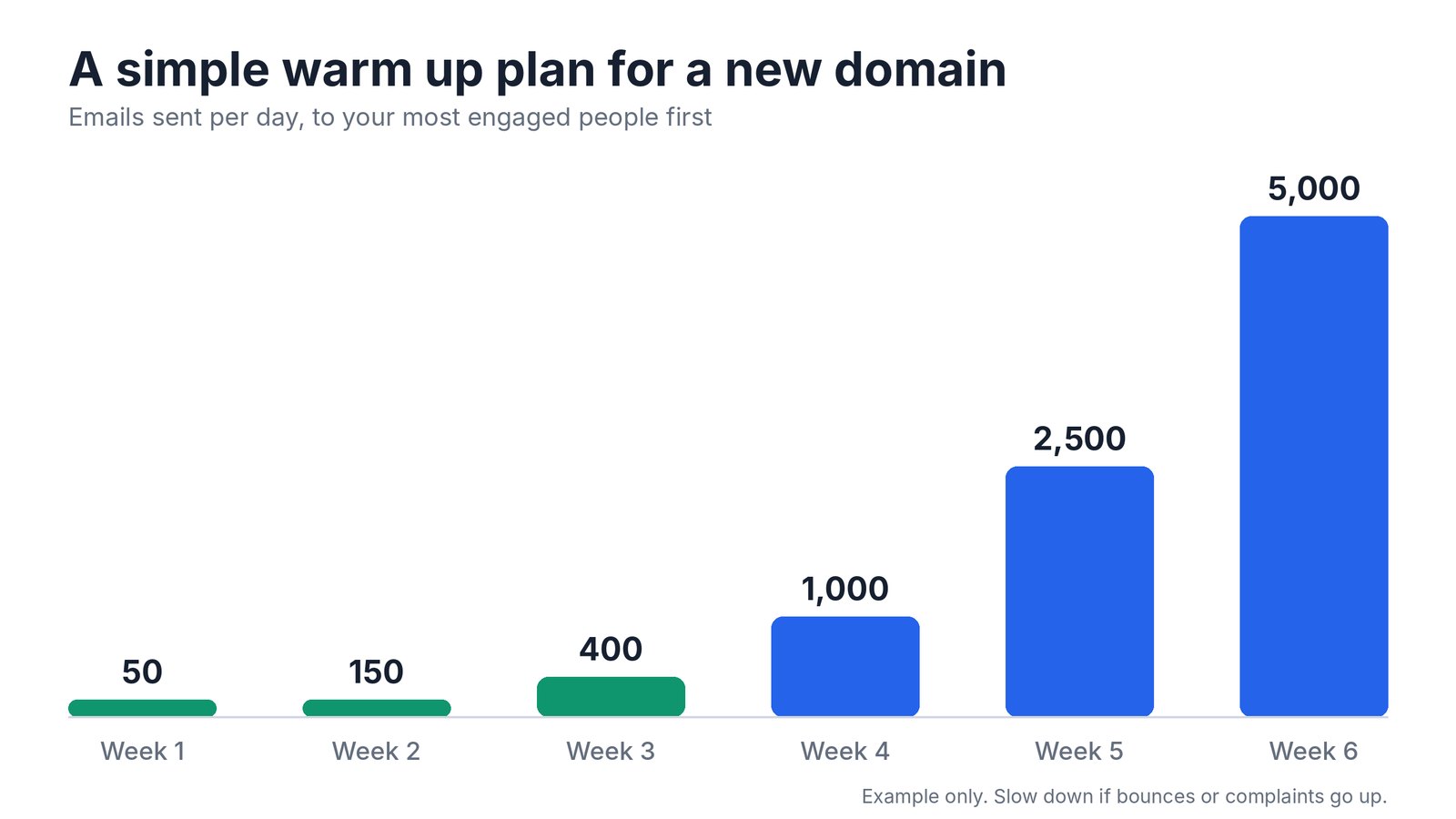
Once you're warmed up, keep a steady rhythm. Same days, similar volumes. If bounces or complaints rise, slow down until they settle.
It also helps to send marketing email from a subdomain, like news.yourdomain.com. That way a rough campaign doesn't drag down the reputation of the domain you use for everyday business email.
Shared IP or Your Own?
Most small senders send from a shared IP address that their email service gives them. That's usually fine, and often better.
A good email service keeps its shared IPs clean, and you benefit from the reputation of everyone on it. The catch is that one careless sender on the same IP can drag everyone down for a while.
A dedicated IP is yours alone. Nobody else can hurt it, but nobody else helps it either. You need steady volume, usually tens of thousands of emails a month, to keep a dedicated IP warm.
If you send less than that, stay on a shared IP and focus on your domain reputation. That's the part you control.
How to Test Where Your Emails Land
Don't guess. Check.
Make a few free test inboxes at Gmail, Outlook and Yahoo. Add them to your list and look at where each campaign lands, the inbox, the Promotions tab or spam.
If you send a lot to Gmail users, sign up for Google Postmaster Tools. It shows your domain reputation, spam complaint rate and authentication results, straight from Google. Microsoft has a similar program called SNDS for Outlook.
Also open the full headers of a test email. Look for "spf=pass", "dkim=pass" and "dmarc=pass". If any of them say fail, you know where to start.
Already Stuck in Spam? A Recovery Plan
If most of your emails already land in spam, don't keep blasting the whole list. That makes it worse. Do this instead.
- Pause big sends for a few days.
- Fix the basics. Authentication, blocklists and list cleaning, in that order.
- Restart small. Send only to people who opened or clicked in the last 30 to 60 days.
- Ask for a reply. A simple question at the end of the email gets people to answer, and replies rebuild trust fast.
- Grow slowly. Add older contacts back in small groups over two to four weeks.
- Watch the numbers. If bounces or complaints spike, go back a step.
Most senders see real improvement within a few weeks of steady, clean sending.
A Quick Checklist Before Every Campaign
- Clean the list and remove invalid and temporary addresses.
- Check that your domain and sending IP aren't on a blocklist.
- Confirm SPF, DKIM and DMARC all pass.
- Read the subject line out loud. Would you open it?
- Use a real sender name and a reply address you check.
- Make sure the unsubscribe link works in one click.
- Send to your most engaged contacts first if the list is large.
- Watch bounces and complaints for the first hour after sending.
Most of this takes ten minutes. It can save a whole campaign.
How Clean-Emails Helps
Clean-Emails covers the list side and the technical side of getting into the inbox.
- List cleaning. Upload a CSV or paste emails. Every address comes back deliverable or invalid, with the reason.
- Clean downloads. Export only the good emails as CSV, JSON or the same format you uploaded.
- Temporary Mail Checker. Finds disposable inboxes, free.
- Blacklist Monitor. Checks a sending IP, a domain and its mail server IPs, free.
- Inbox Placement. Checks SPF, DKIM, DMARC and MX for your domain, free.
- MCP Server. Connect your AI assistant and ask it to verify a list for you.
- Team Access. Bring your team into the same account.
You get 5,000 free credits when you create a free account, with nothing to pay at sign up. After that, extra credits cost $1 per 1,000.
Frequently Asked Questions
Why do my emails go to spam when I send to just one person?
Usually it's missing or broken SPF, DKIM or DMARC on your domain, or a domain that's on a blocklist. Run a free authentication check and a blocklist check first.
How do I get my emails out of spam?
Fix the cause, then rebuild trust slowly. Clean your list, set up authentication, send to engaged people first and ask them to reply or mark you as not spam.
Does a bounce rate really matter?
Yes. A high bounce rate tells inboxes your list is old or careless. Try to keep it under 2 percent, and lower is better.
Will cleaning my list alone fix spam problems?
It fixes one big cause. If your domain has no authentication or sits on a blocklist, you'll need to fix those too.
How long does it take to recover sender reputation?
Often a few weeks of steady, clean sending. Bad blocklist listings or very high complaint rates can take longer.
Final Thoughts
When emails go to spam, it's almost always one of six things. A dirty list, a blocklist, missing authentication, spammy content, low engagement or odd sending habits.
Find which one applies to you, fix it, and keep doing the basics every time you send.
Start with the free checks. They take a minute and they'll tell you where you stand.